

Download Tailscale for macOS from the download page, either from the App Store or as a standalone app, and start it after installation. Tailscale then appears as an icon in the menu bar.
Entering the platform’s server in the app
-
Open Tailscale from the icon in the menu bar.
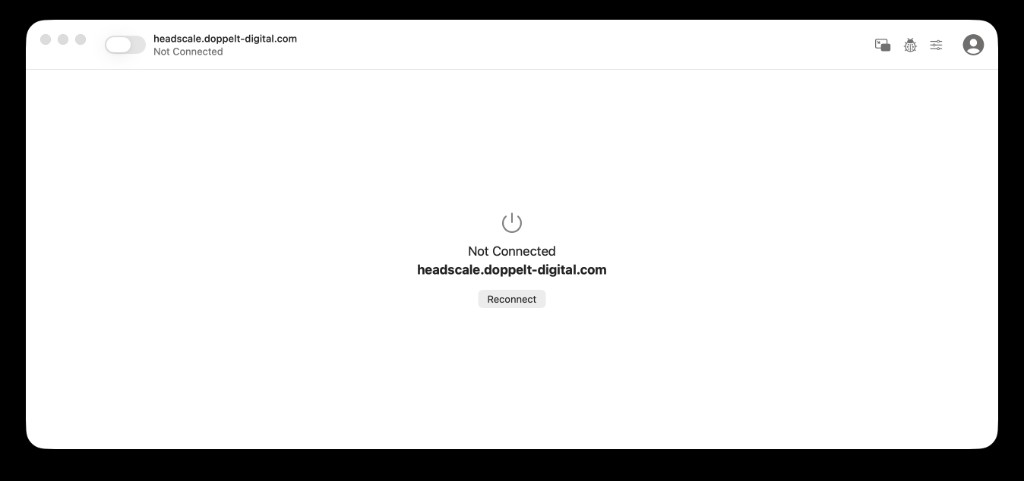
-
Click Settings in the top-right corner and switch to the Accounts tab.
-
Click Add Account… and then the down arrow next to the button.
-
In the Add Account Using Alternate Server dialog, enter
https://headscale.application-platform.com.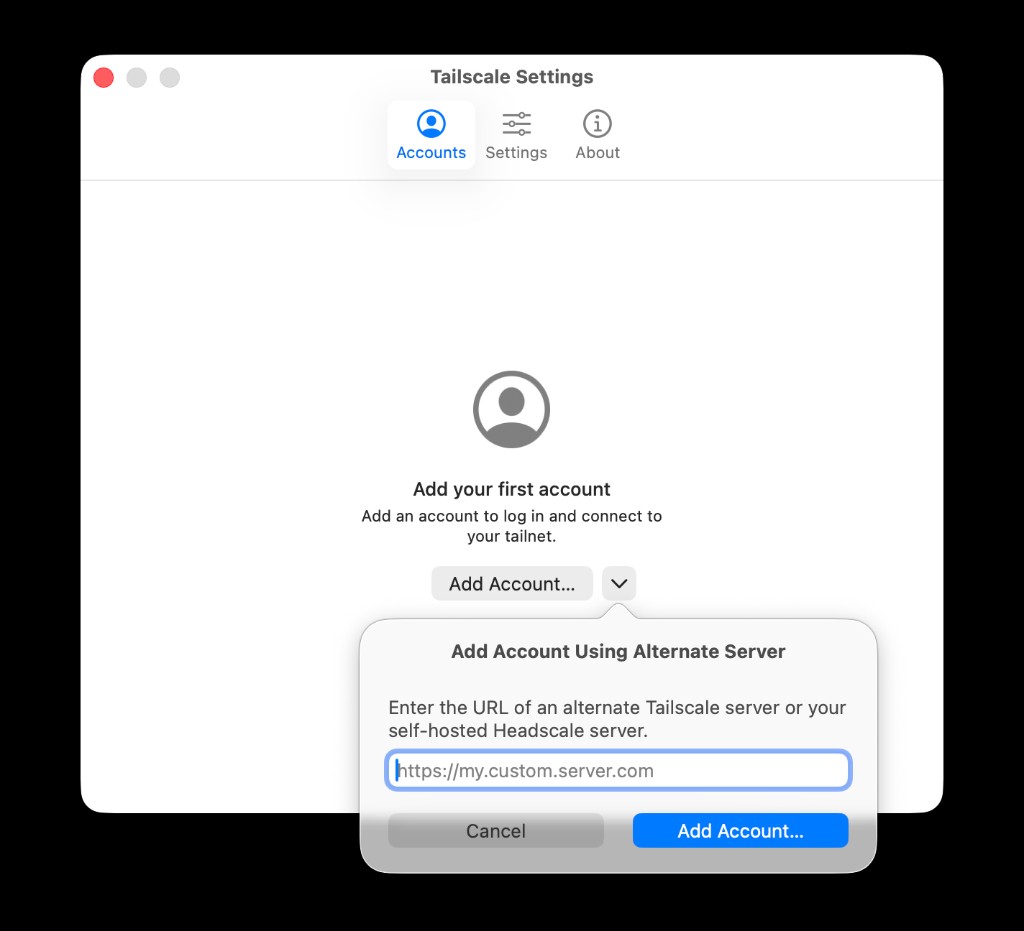
-
Click Add Account…. A browser window opens where you sign in.
-
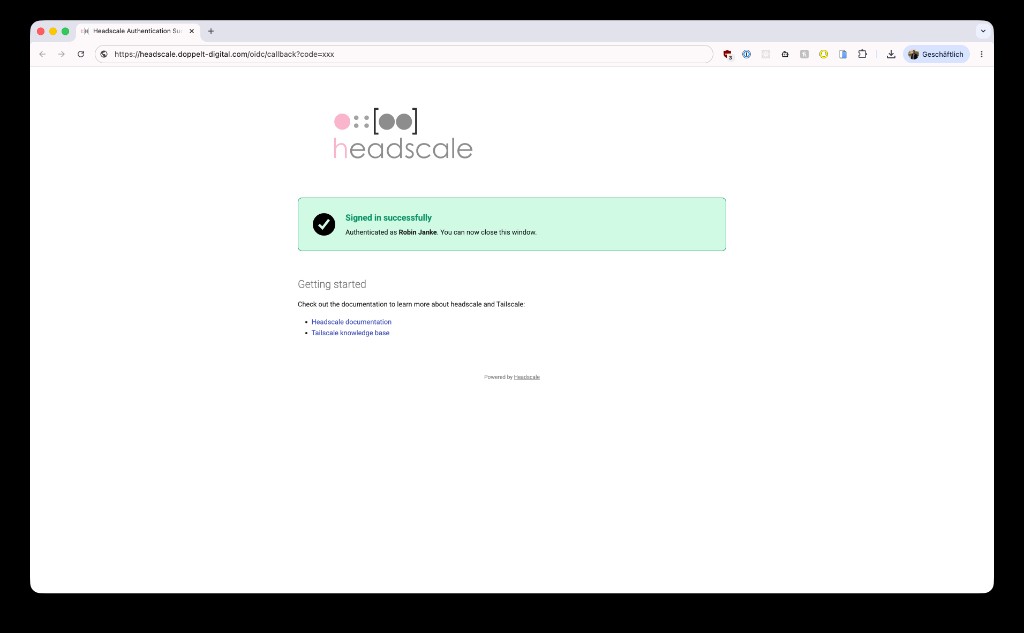
After signing in, the browser shows Signed in successfully. You can close the window.
Instead of using the app, you can also sign in from the terminal. The command is also shown in the Connect dialog of your workspace:
tailscale login --login-server=https://headscale.application-platform.com
Checking that the connection is up
Tailscale in the menu bar now shows Connected. With that you can download the RDP file or open workspace apps in the web interface, as described under Connect to your workspace. If it does not show Connected, check in the Accounts tab whether the account is signed in to the platform’s server rather than the default Tailscale server. If the workspace still cannot be reached afterwards, see Troubleshooting.